


A factory reset erases all the settings on your Cisco router and puts back the default login.
Before You Reset
Write down your WiFi settings, port forwards and Internet login. On small business routers, back up the configuration first, under Administration > Backup/Restore Settings. A restart keeps all your settings.
Method 1: The Reset Button
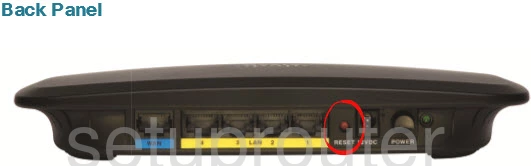
- With the router on, press and hold the Reset button with a paperclip.
- Small business RV routers: hold it for more than 10 seconds, until the power light blinks. Holding it for 3 to 10 seconds only reboots the router.
- Cable gateways and home routers: hold it for about 10 to 15 seconds.
- Let go and wait a few minutes while the router restarts.
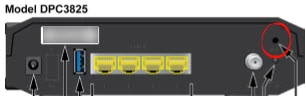
Method 2: Reset From the Web Interface
- Small business routers: Administration > Factory Default (or Administration > Reboot, then Return to Factory Default).
- Cable gateways and home routers: Administration > Factory Defaults, then Restore Factory Defaults.
After the Reset
Log in with the defaults (see the Cisco login guide), set a new admin password, and set up your WiFi.