


A factory reset erases everything on your D-Link router and puts back the default settings. Do it when you've forgotten the admin password, or when the router is misbehaving and nothing else helps.
Reset Is Not Reboot
A reboot just restarts the router, and all your settings stay. A reset wipes all of them. Before a reset, write down:
- Your WiFi network name and password.
- Your Internet login, if you have one. DSL connections often need a username and password from your ISP. Call your ISP if you don't have it.
- Any port forwards, reservations or DNS settings you've added.
Method 1: The Reset Button
D-Link routers have a small Reset pinhole, usually on the back next to the power socket. On some models (such as the DSL-2890AL) it is on the bottom.
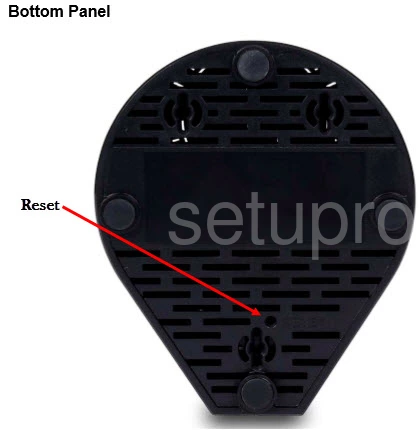
- Leave the router powered on.
- Push a straightened paperclip into the reset hole and hold it for 10 seconds.
- Let go. The router restarts by itself, which takes one to two minutes.
Most D-Link routers need 10 seconds. Some older DI and DSL models need up to 30 seconds. If the default password doesn't work afterward, do it again and hold the button longer.
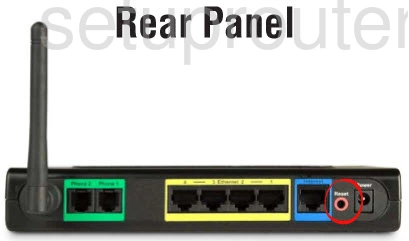
Warning: don't unplug the router while it resets.
Method 2: Reset From the Web Interface
If you can still log in:
- Classic D-Link routers: go to TOOLS > SYSTEM and click Restore Factory Defaults (on some models, Restore Device).
- Newer D-Link routers: go to Management > System Admin, open the System tab, and click Restore next to Restore to Factory Default Settings.
- DSL modem routers: go to Maintenance > System (or Management > Settings > Restore Default) and click Restore Default Settings.
After the Reset
- Log in at http://192.168.0.1 with the username admin and a blank password, or the password on the sticker. Our D-Link login guide shows each step, and the D-Link passwords page lists the defaults for each model.
- Newer routers start the Setup Wizard straight away. Follow it to set an admin password and connect to the Internet.
- Set a strong admin password. See choosing a strong password.
- Set up WiFi again with our D-Link WiFi guide, and put back your other settings.