


Here's how to log in to a FiberHome router.
Step 1: Connect
Connect to the router's WiFi or plug a computer into one of its LAN ports with a network cable.
Step 2: Open the Login Page
Type http://192.168.1.1 into your browser's address bar. Some models use a different address. See the FiberHome IP address page.
Step 3: Sign In
- admin / the password on the label: most newer units.
- admin / admin: some older models.
- ISP versions: a user login on the label, while the ISP keeps the admin login.
See every known default on the FiberHome passwords page.
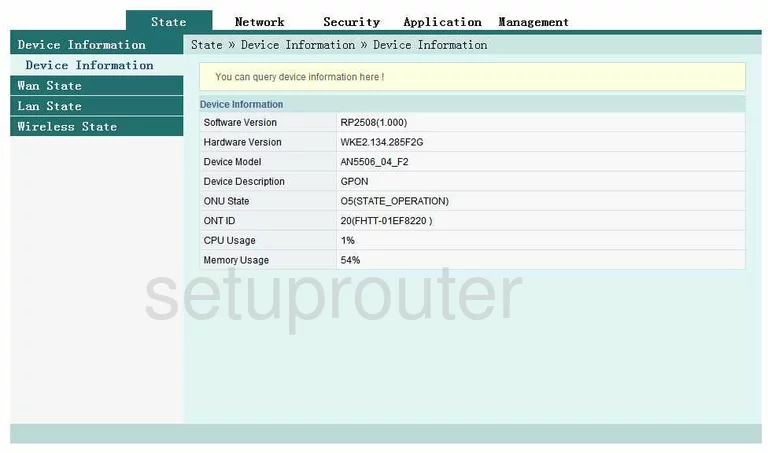
FiberHome Login Problems
The page won't load. Check that you're connected to the FiberHome router (not a second router or extender), and run ipconfig to see its real address.
The password is rejected. Try each default above and the password on the label. Your ISP may have changed it, so check with them. If nothing works, reset the router.
Fiber Home Router Screenshots
Screens from the Fiber Home routers we have. Click a model to open it.
AN1020-25 (4 screens)
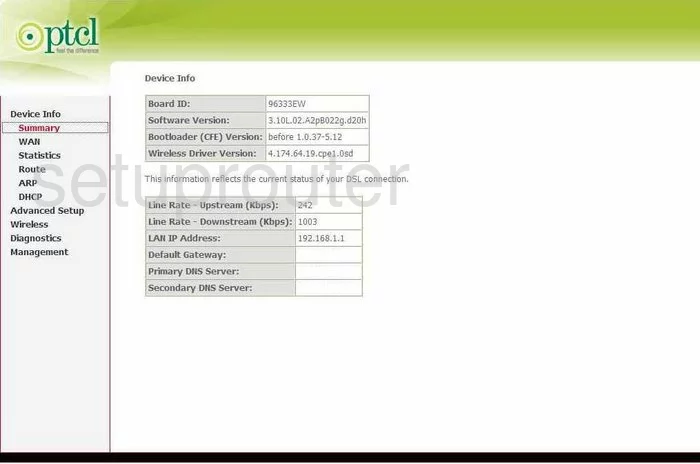
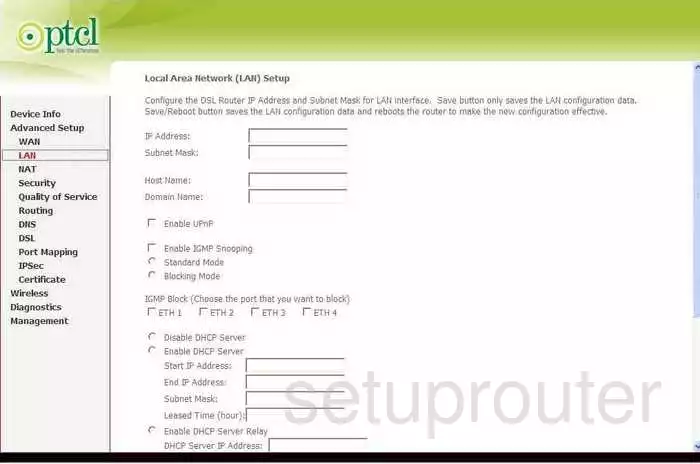
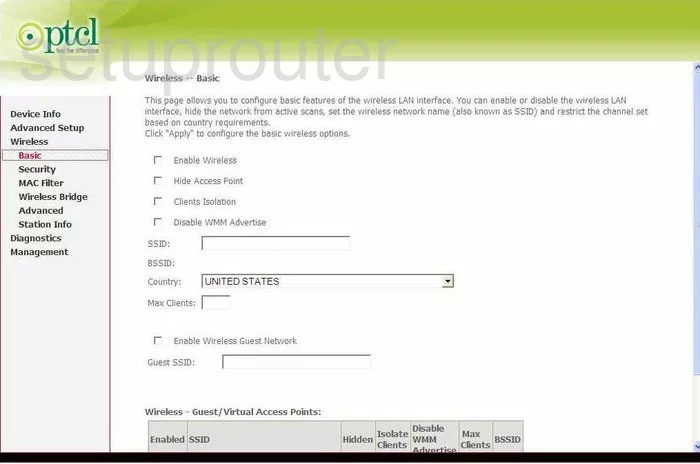
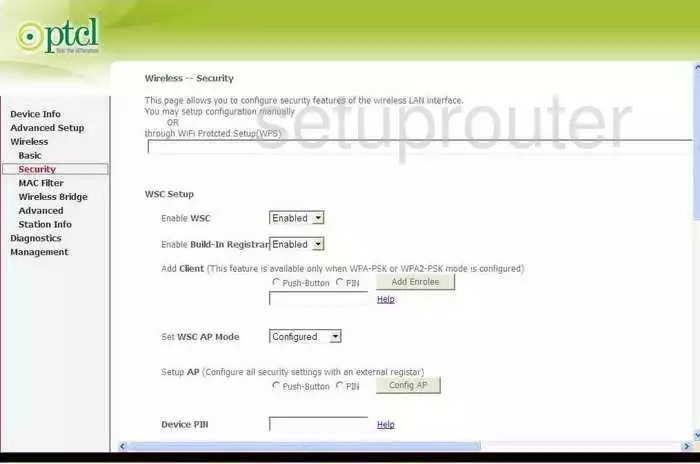
AN5506 04 F2 (4 screens)
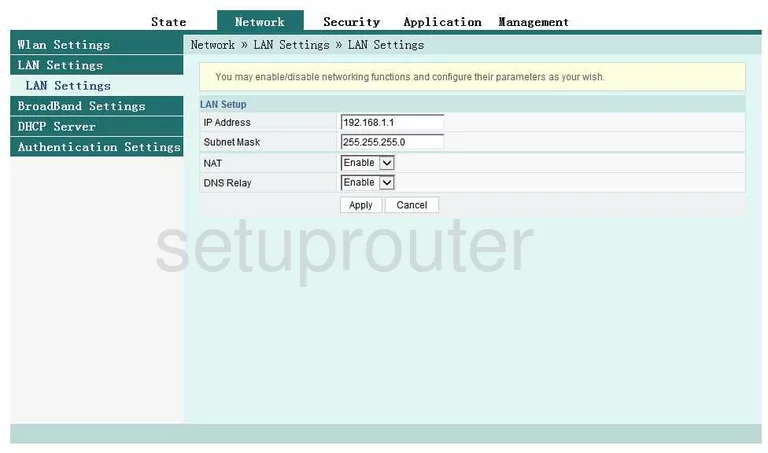
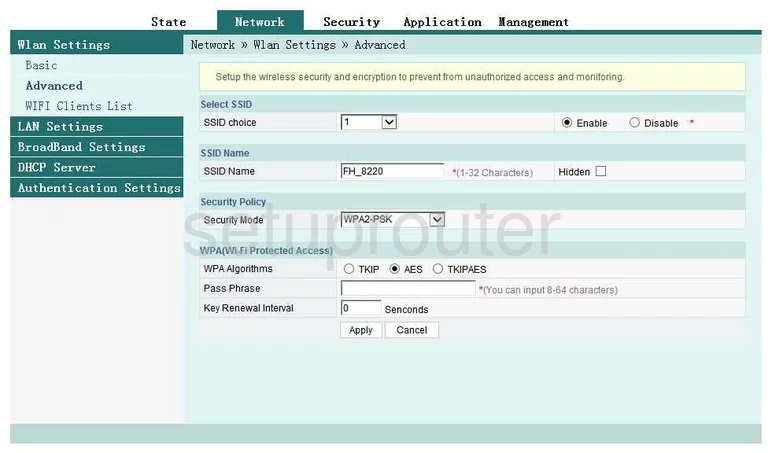
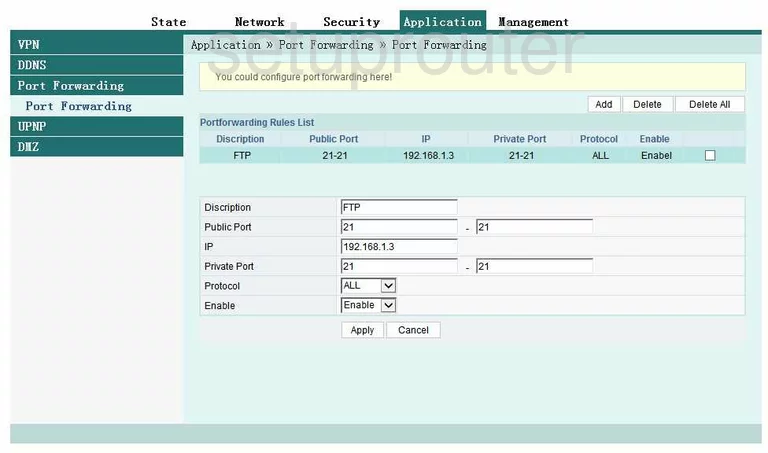
AN5506-02-F (1 screens)
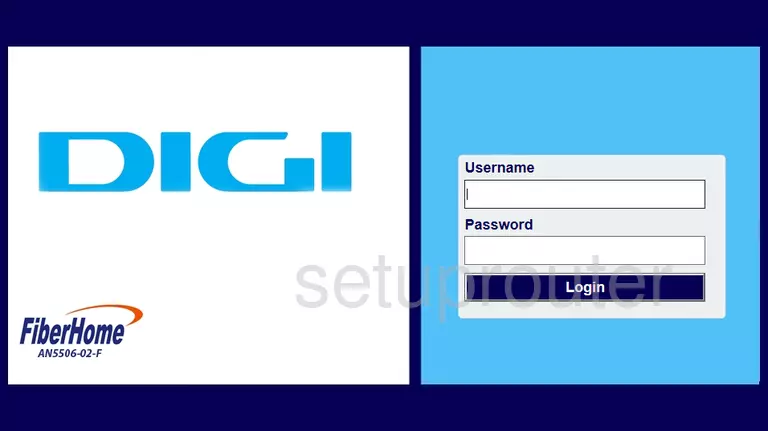
AN5506-04-F (4 screens)
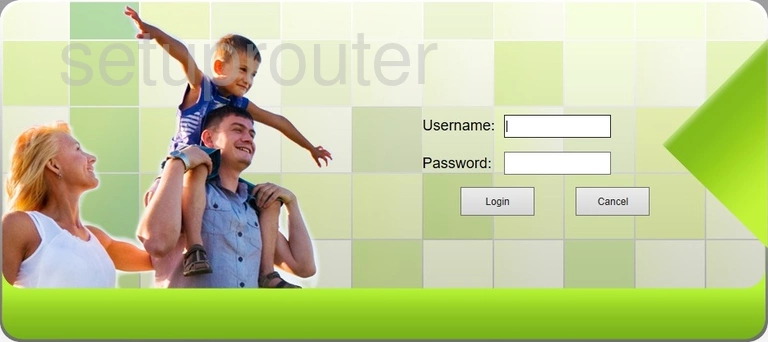
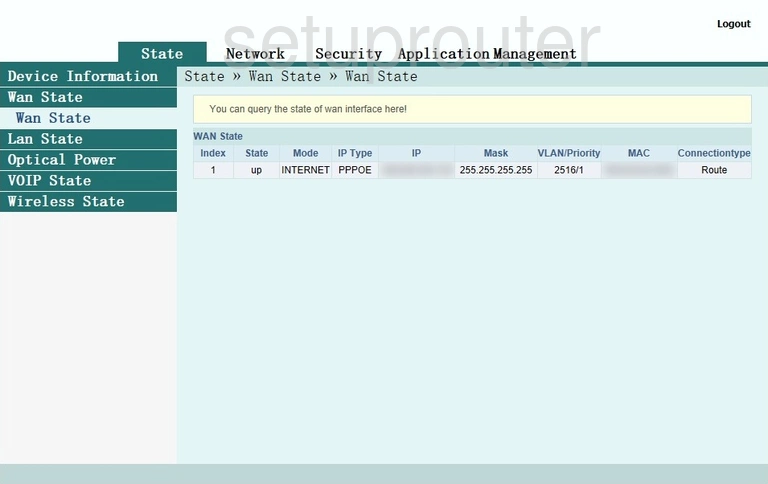
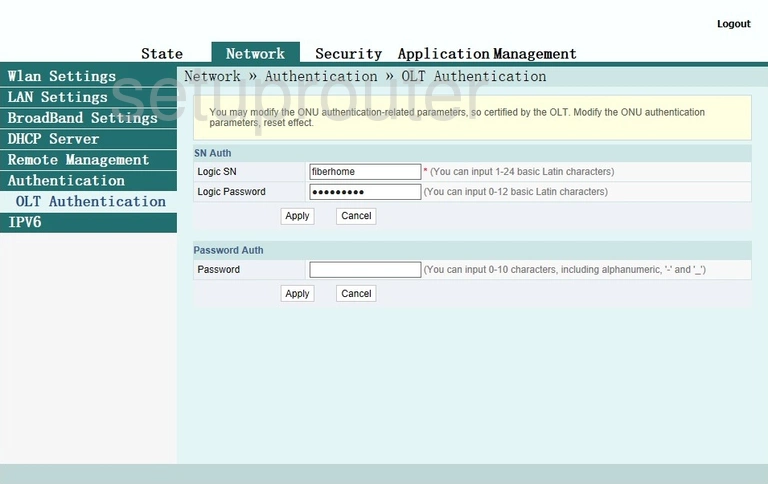
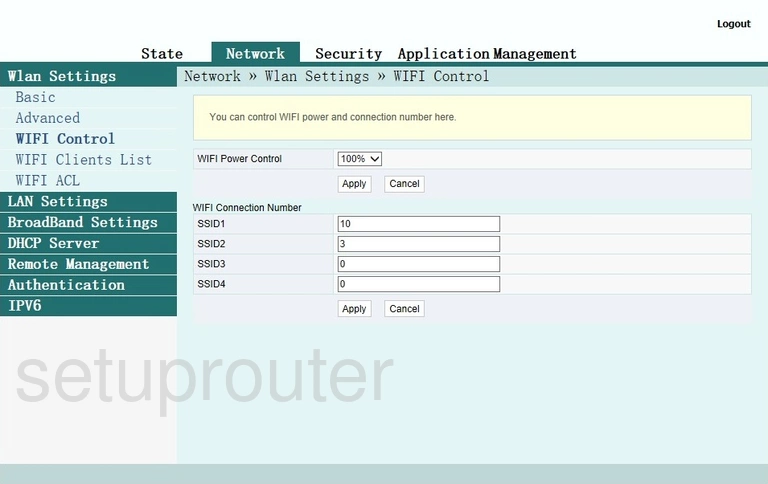
AN5506-04-FA (1 screens)
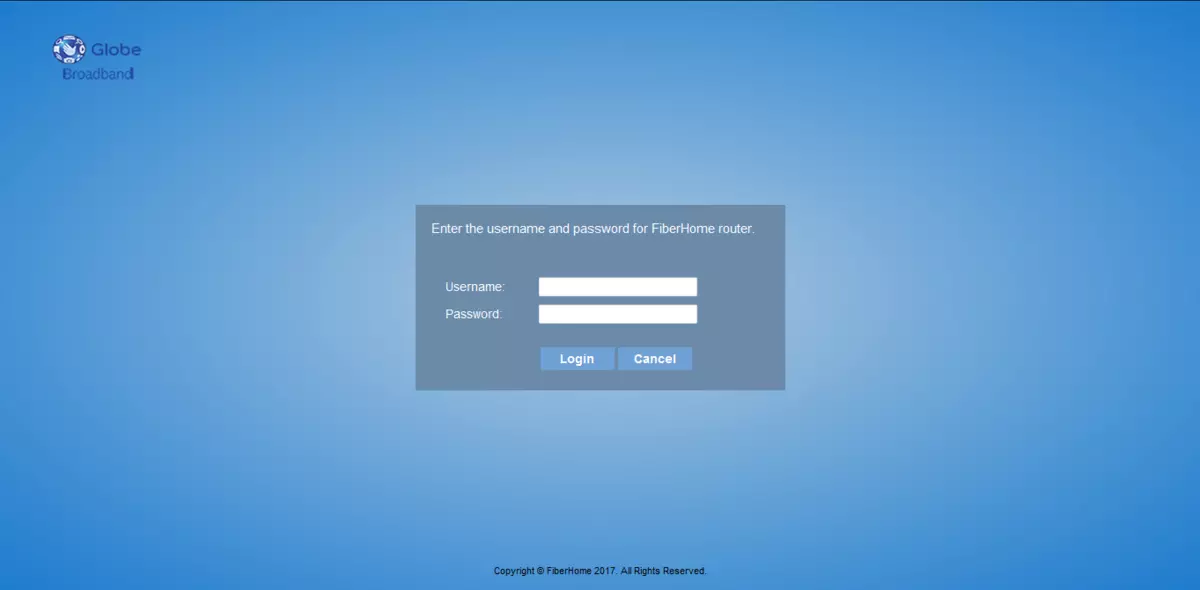
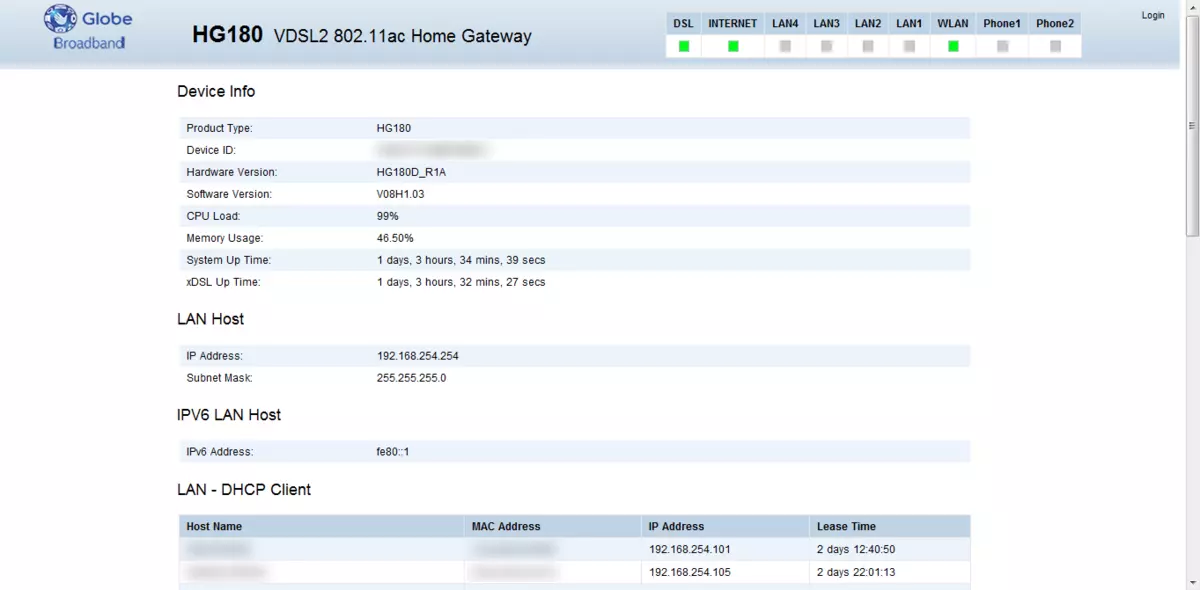
HG180 (2 screens)
Fiber Home Router Manuals
- Fiber Home AN5506 04 F2 user manual (manual-1024)
- Fiber Home AN5506-04-F user manual (manual-2267)