


A factory reset puts your Greenwave Systems router back to its default settings, including the default login.
Before You Reset
Your ISP set up this device. A reset can erase the Internet (and phone or TV) settings, and some ISPs have to put them back, so check with them first. A reset erases your WiFi name and password, Internet login and port forwards, so write them down. A restart (power off for 30 seconds) keeps all your settings.
Method 1: The Reset Button
- With the router on, press and hold the Reset button (usually a pinhole on the back, so use a paperclip) for about 10 to 15 seconds.
- Let go and wait a few minutes while the router restarts.
Method 2: Reset From the Web Interface
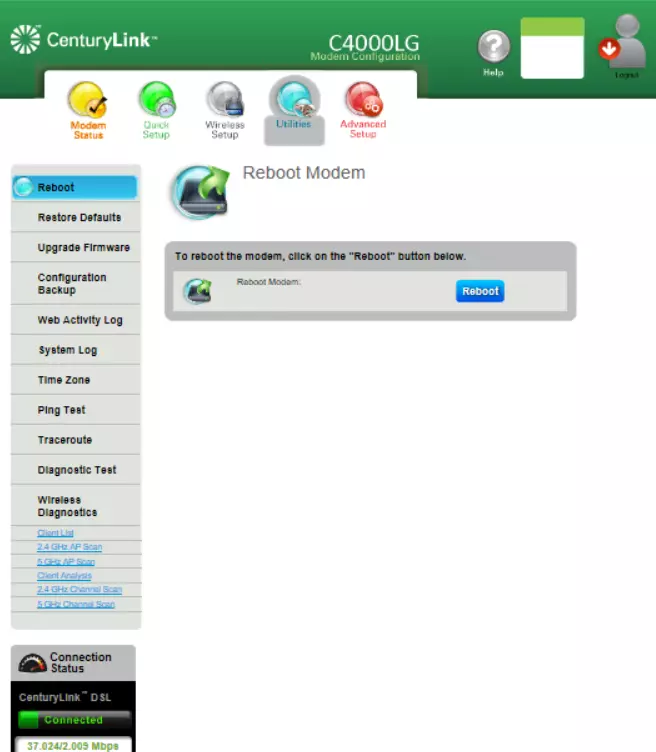
Log in, go to Advanced Setup > Utilities > Restore Defaults (C4000) or Advanced > Utilities > Restore Defaults (Fios) and confirm.
After the Reset
Log in at http://192.168.0.1 with the defaults (see the Greenwave Systems login guide), set a new admin password, and set up your WiFi and Internet connection again.