


A factory reset puts a Linksys router back to the way it came out of the box. It is the fix of last resort when you have forgotten the router password, or when the settings are so tangled that starting over is easier.
Reset or Reboot?
These two words get mixed up all the time.
- A reboot just turns the router off and on again. Nothing is lost. Try this first for slow or dropped connections.
- A reset erases every setting and puts the factory defaults back.
Before you reset, write down anything you'll need to set up again. That includes:
- The router's admin password.
- Your WiFi network name (SSID) and WiFi password.
- Your Internet login, if your ISP gave you a username and password (common with DSL). Call your ISP if you don't have it.
- Any port forwards, static IP addresses or DNS settings you have changed.
Method 1: The Reset Button
Every Linksys router has a reset button, usually a small pinhole on the back labeled Reset. On some models it is on the bottom or the side.
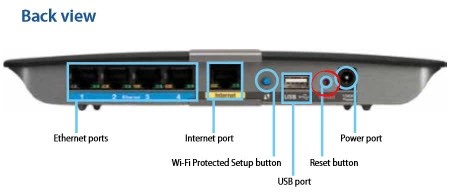
- Leave the router plugged in and turned on.
- Press and hold the reset button with a straightened paperclip or a pin for 10 seconds. On most models the power light starts to blink.
- Let go and wait one to two minutes while the router restarts.
On some older Linksys routers 5 seconds is enough, and a few of them need up to 30 seconds. If the defaults don't work afterward, the reset didn't take. Do it again and hold the button longer. Velop nodes have the button on the bottom. Hold it until the light on top turns red and fades out.
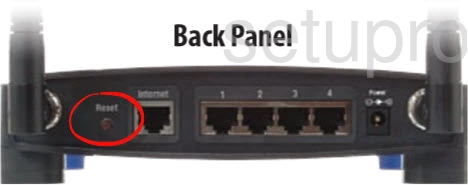
Warning: Don't unplug the router while it is resetting. Cutting the power during a reset can damage it.
Method 2: Reset From the Settings Menu
If you can still log in, you can reset the router without touching it.
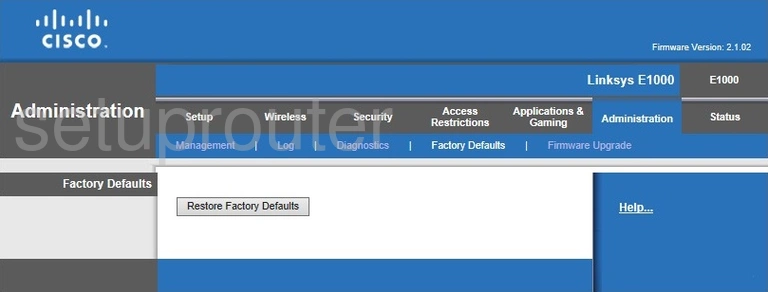
- Classic Linksys routers: go to Administration > Factory Defaults, set Restore Factory Defaults to Yes, and click Save Settings.
- Smart Wi-Fi routers: go to Troubleshooting > Diagnostics and click Reset under Factory reset. On some models it is under Connectivity > Administration.
- Velop and app-based routers: in the Linksys app, open Advanced Settings > Factory Reset.
After the Reset
Your router is now back to factory defaults:
- Log in with the default details. Usually that's http://192.168.1.1 and the password admin. Our Linksys login guide walks you through it, and the Linksys passwords page lists the defaults for each model.
- Change the admin password straight away. Our choosing a strong password guide can help.
- Set up your WiFi name and password again with our Linksys WiFi guide.
- Put back your Internet login, port forwards and any other settings you wrote down.
Tip: Smart Wi-Fi and Velop routers start a setup wizard after a reset. You can follow it, or skip it to get straight to the settings.