


Here are instructions for logging in to the SmartRG SR500NE router.
Other SmartRG SR500NE Guides
This is the login guide for the SmartRG SR500NE. We also have the following guides for the same router:
Find Your SmartRG SR500NE Router IP Address
The first thing that we need to know in order to login to the SmartRG SR500NE router is it's internal IP address.
| Known SR500NE IP Addresses |
|---|
| 192.168.1.1 |
Start with the first IP address in the list and then follow the rest of this guide.
If later on in this guide you do not find your router using the IP address that you pick, then you can try different IP addresses until you get logged in. I will not hurt anything to try different IP addresses.
If, after trying all of the above IP addresses, you still cannot find your router, then do one of the following:
- Follow our guide called Find Your Router's Internal IP Address.
- Download and install our free Router Detector software.
Now that you have your router's internal IP Address, we are ready to login to it.
Login to the SmartRG SR500NE Router
The SmartRG SR500NE is managed through a web-based interface. The way you manage it is by using a web browser like Firefox, Edge, or Chrome.
Enter SmartRG SR500NE Internal IP Address
Put the internal IP Address of your SmartRG SR500NE in the address bar of your web browser. The address bar will look like this:
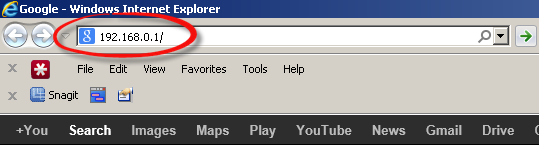
Press the Enter key on your keyboard. You will be prompted for your SmartRG SR500NE password.
SmartRG SR500NE Default Username and Password
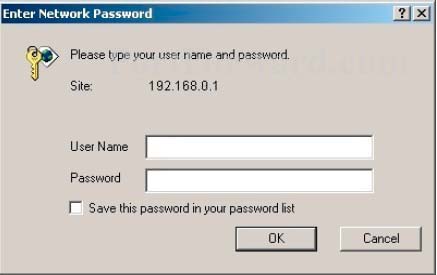
In order to login to your SmartRG SR500NE you are going to need to know your username and password. If you are not sure what the username and password are, then perhaps they are still set to the factory defaults. Try all of the SmartRG SR500NE factory default usernames and passwords below.
| SmartRG SR500NE Default Usernames and Passwords | |
|---|---|
| Username | Password |
| admin | admin |
Enter your username and password in the window that pops up. Keep trying them all until you get logged in.
SmartRG SR500NE Home Screen
If your password is correct then you will be logged in and see the SmartRG SR500NE home screen, which looks like this:
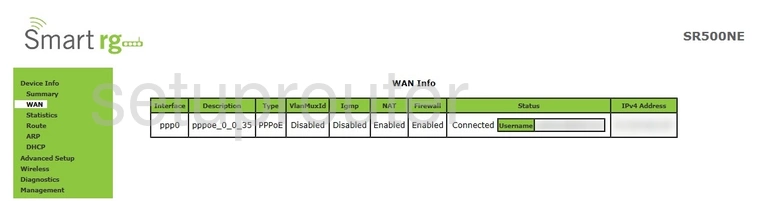
If you see this screen, then congratulations, you are now logged in to your SmartRG SR500NE. You are now ready to follow one of our other guides.
Solutions To SmartRG SR500NE Login Problems
If things are not going right and you are unable to login to your router, then here are some other things that you can try.
SmartRG SR500NE Password Doesn't Work
Perhaps your router's default password is different than what we have listed here. It doesn't hurt to try all of the other known SmartRG passwords. Head over to our list of all SmartRG Passwords.
Forgot Password to SmartRG SR500NE Router
If you are using an ISP provided router, then you may need to call their support desk and ask for your login information. Most of the time they will have it on file for you.
How to Reset the SmartRG SR500NE Router To Default Settings
The last option when you are unable to get logged in to your router is to reset it to the factory defaults. If you decide to reset your router to factory defaults, then you can follow our How To Reset your Router guide.f you still cannot get logged in, then you are probably going to have to reset your router to its default settings.
Other SmartRG SR500NE Guides
Here are some of our other SmartRG SR500NE info that you might be interested in.
This is the login guide for the SmartRG SR500NE. We also have the following guides for the same router: