


A factory reset puts your Technicolor gateway back to its out-of-the-box settings.
Before You Reset
Technicolor gateways usually come from an ISP, and a reset can remove the ISP's settings. That includes your Internet login, VoIP phone settings and VLAN. Many ISPs set the gateway up again automatically, but some need a call. Write down your WiFi details and port forwards first. A restart (power off and on) doesn't erase anything.
Method 1: The Reset Button
- With the gateway on, press and hold the Reset button on the back for about 10 seconds, until the lights change. On many MediaAccess gateways, the power light turns red, then blinks.
- Let go and wait about three minutes.
Method 2: Reset From the Web Interface
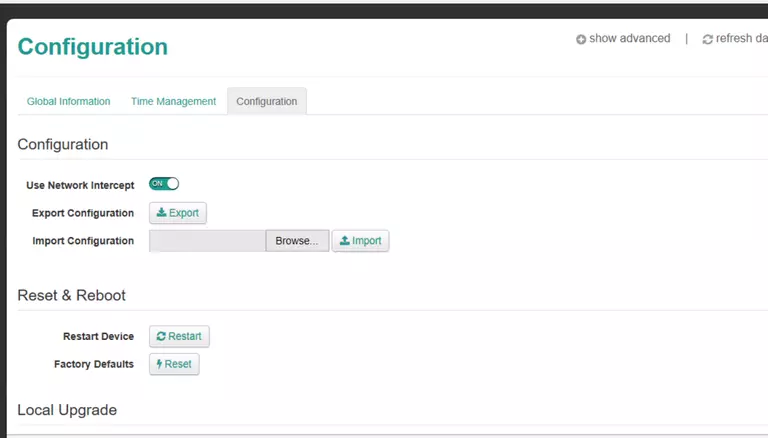
- MediaAccess gateways: open the Gateway tile and click Factory reset (or Reset). On older firmware, go to Technicolor Gateway > Configuration > Restore Defaults.
- Cable gateways: Status > Security (or Admin > Backup), then Factory Reset or Restore Factory Defaults.
After the Reset
Log in with the default details on the label (see the Technicolor login guide). Check that the Internet is back, re-enter your ISP details if you need to, and set up WiFi.