


A factory reset puts your TP-Link router back to its original settings. Use it when you're locked out or the router won't behave, and a restart hasn't helped.
Before You Reset
A restart keeps your settings. A reset erases all of them. Write down:
- Your WiFi name and password.
- Your Internet connection details (PPPoE username and password, VLAN, or VPI/VCI for DSL) from your ISP.
- Port forwards, address reservations and any other changes.
Method 1: The Reset Button
Look on the back for a RESET button or pinhole. On many TL-WR models it's a combined WPS/RESET button.
- Leave the router switched on.
- Press and hold RESET for about 10 seconds, until the SYS or power light blinks quickly or all the lights flash.
- Let go and wait about two minutes while the router restarts.
With a combined WPS/RESET button, a short press starts WPS. Keep holding it to reset.
Deco: press and hold the Reset button on the bottom of a Deco unit until the light blinks yellow, which takes about 1 to 2 seconds. Reset the main Deco to start the whole system again.
Method 2: Reset From the Web Interface
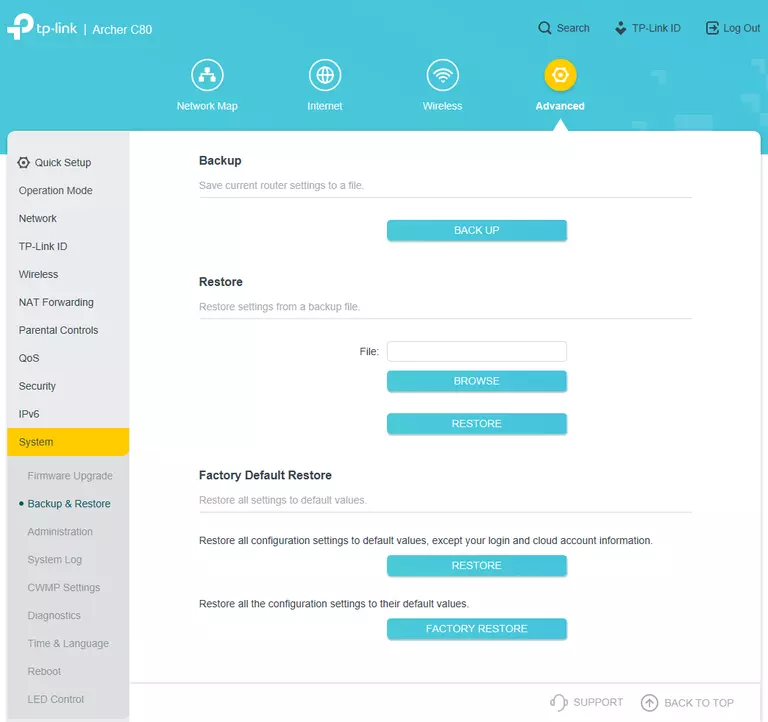
- Newer TP-Link routers: go to Advanced > System Tools > Backup & Restore (on some models, System > Backup & Restore). Click Factory Restore and confirm.
- Older TP-Link routers: go to System Tools > Factory Defaults and click Restore.
- Deco app: More > System > Reset (or remove the Deco from the app).
After the Reset
- Connect to the default WiFi on the label, or plug in a cable.
- Go to http://tplinkwifi.net (or tplinkmodem.net). Newer models ask you to create a new password. Older ones use admin / admin. See the TP-Link login guide.
- Run Quick Setup to get back online, then set up WiFi.