


This guide applies to writing for PortForward.com as well. At any point in this guide that you read SetupRouter.com you can replace it with PortForward.com. Let's get started.
Setup your development Environment
The first thing we are going to do is setup your development environment. This will get you the HTML editing software installed on your computer and the blank templates put on your hard drive.
Download and install Komposer - This is the editor that you will be using.
- Click the Komposer link above and save the file to your hard disk. Note where you saved it.
- Go to the location that you saved the above link and run the file called kompozer-0.8b3.en-US.win32.exe.
- The default install options for Komposer are fine. Just click Next, Next, Next through the install.
Download and install PF and SR Templates - These are blank templates to start working with.
- Click the PF and SR Templates link above and save the file to your hard disk. Note where you saved it.
- Go to the location that you saved the above link and run the file called PF-SR-Templates1.0.exe. It is suggested that you install it in the default location of c:pf but if you really know what you are doing you can change it.
At this point in time your dev environment should be ready to go. Now let's configure Komposer.
Configure Komposer
You should be able to find Komposer in your Start Menu. Launch it now.
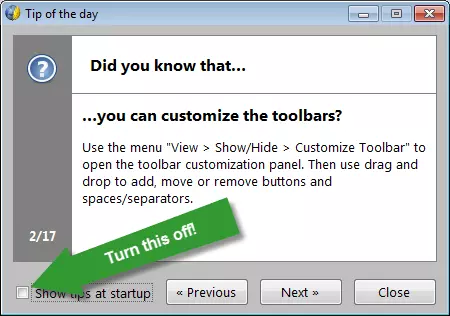
When you first launch Komposer you'll get an annoying "Tip of the day" dialog. Turn them off when you get tired of them.
You should also turn the "Sidebar" off by clicking View->Show/Hide->Sidebar and making sure that it is unchecked.
Now we need to turn off CSS styles. Click Tools->Preferences... and uncheck Use CSS styles instead of HTML elements and attributes.
Load up a template
Now you are ready to load up a template. Do this in Komposer by clicking:
- File
- Open File
- Navigate on your computer to c:pfSetupRouter.com emplate
- Open the file called setuprouter-template (it may have .htm on the end depending on your computer)
You should see something like the following screenshot:
Congratulations, you are ready to write. Let's just assume that you are writing a guide about "Resetting a Router". Let's go ahead and save this file right now so that we don't lose any work or accidentally clobber our template.
- Click File
- Choose Save As...
- Komposer will put you in c:pfSetupRouter.com emplates. This is good, this is where you want to be.
- Type in a filename, such as "resetting a router.htm" (the .htm is optional, leave the quotes off)
Now you can work on your writing skills. As you work click the Save icon often. Komposer does not save backups for you.
NOTE: Every time you start a guide I want you to Load up a Template and click Save As... with a new file. It's important to start with a fresh copy of the template for each new guide.
Go Watch Some Videos
Now you need to go watch 3 important videos that address a couple of challenges you will bump in to, and help to maintain standards in our guides.
- How To Capture Images from the Web.
- How To Use Komposer (this video is large, so after it starts be sure to press F11 to view it full screen, and F11 to exit full screen)
- How To SEO (this video is also large, so hit F11 again) (also, it ends at 8 minutes but the video scroll bar only appears half way done... don't ask me why)
After you finish those steps let me know that you are ready and I will give you a topic to cover. If you need any examples of how a guide should look, this page that you are looking at right now is a perfect example.