


A factory reset erases the settings on your ARRIS gateway. That includes the WiFi name and password, the admin password and port forwards. Use it when you're locked out, or when something is broken that a restart doesn't fix.
Before You Reset
- Restart first. Unplugging the gateway for 30 seconds fixes most problems without erasing anything.
- Write down your WiFi name and password, and any port forwards.
- The cable modem side of the gateway gets its Internet settings from your ISP, so it reconnects by itself after a reset. NVG DSL gateways may need your ISP login details.
Method 1: The Reset Button
The Reset pinhole is on the back panel.
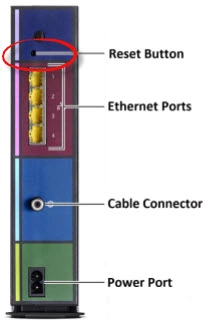
- Leave the gateway on.
- Press and hold the reset button with a pin for about 15 seconds (10 is enough on many models), until the lights flash.
- Let go and wait up to 5 minutes while the gateway restarts and reconnects to your ISP.
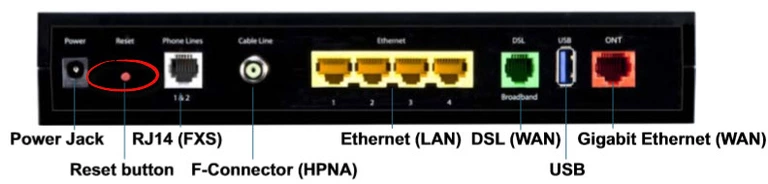
Don't press the reset button briefly by mistake. On some models a short press restarts the gateway, and a long press resets it.
Method 2: Reset From the Web Interface
- SURFboard gateways: Status > Configuration (or Advanced > Options), then Factory Reset.
- Touchstone gateways: Basic > Backup/Restore (or Utilities > Factory Defaults), then Factory Reset.
- Xfinity gateways: Troubleshooting > Reset/Restore Gateway, then Restore Factory Settings.
- NVG gateways: Diagnostics > Resets, then Reset to Factory Default.
After the Reset
- Connect with the default WiFi details on the label.
- Log in with the default password. See the ARRIS login guide.
- Change the admin password and set up your WiFi.
- If the Internet doesn't come back within 10 minutes, call your ISP. Some need to reactivate the gateway.