


A factory reset takes a Netgear router back to its out-of-the-box settings. Use it when you're locked out because nobody knows the admin password, or when the settings are broken and you want a clean start.
Reset or Restart?
- Restart (reboot): power the router off and on, or click Reboot in the web interface. Nothing is lost.
- Factory reset: erases every setting, including the WiFi name and password, the admin password, port forwards and your Internet login.
Write down anything you'll need before you reset. That includes the ISP username and password for DSL connections. Your ISP can give it to you if you don't have it.
Method 1: The Reset Button
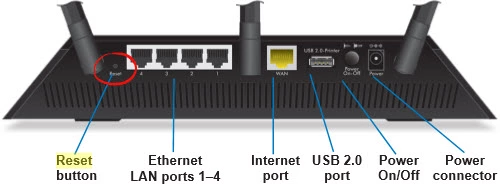
Netgear routers have a recessed button on the back labeled Reset or Restore Factory Settings.
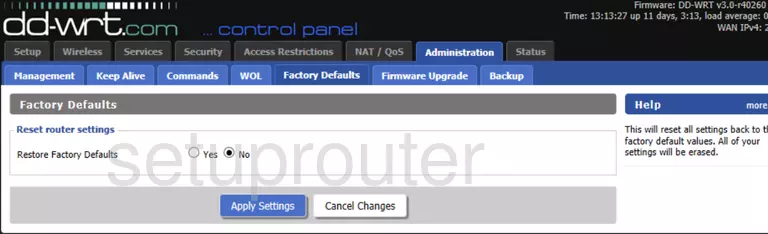
- Make sure the router is powered on.
- Press and hold the button with a paperclip for about 7 seconds, until the Power light starts to blink.
- Release the button and wait two to three minutes for the router to restart.
Orbi: the button is on the back of the router (the base unit). Hold it until the ring light on top blinks amber or white.
Warning: don't turn the router off while it restarts.
Method 2: Reset From the Web Interface
- NETGEAR genie: go to ADVANCED > Administration > Backup Settings and click Erase under Revert to factory default settings.
- Classic Netgear Smart Wizard: go to Maintenance > Backup Settings and click Erase.
- Orbi: go to ADVANCED > Administration > Backup Settings and click Erase.
- Nighthawk app: open Settings > Router Settings (or Advanced) and choose Factory reset.
After the Reset
- Connect to the router's default WiFi. The name and password are printed on the label. Or plug in with a cable.
- Go to http://www.routerlogin.net and sign in with admin / password. Newer routers start a setup wizard and ask you to create a new admin password. Our Netgear login guide and the Netgear passwords page have the details.
- Set a strong admin password. See choosing a strong password.
- Set up WiFi with our Netgear WiFi guide and put back your other settings.