


This guide shows you how to reset your Observa Telecom C4R400 router. A router reset is a much bigger deal than a router reboot. Unplugging a router from the wall reboots it. This is different from a reset because a reset completely erases all settings from the router.
Warning: Before you continue, there are a few things you need to know. The following settings in your router will be changed:
- The router's username and password are reset to factory defaults.
- All WiFi settings are reset, including network name and password.
- If your router has any ISP settings they will be removed, and you will have to contact your ISP.
- All port forwards, firewall settings, and parental controls that you have configured will be removed.
Since a router reset is such a drastic step, it should only be done as a last resort when you cannot recover your router's password using any other methods. You should be sure that you have tried to at least recover your router password using our Router Password Finder before resorting to a router reset.
Other Observa Telecom C4R400 Guides
This is the reset router guide for the Observa Telecom C4R400 B03P14_05 Dynami Wireless. We also have the following guides for the same router:
Recover Password in Observa Telecom C4R400
Before you resort to doing a full router reset, you may want to try running our Router Password Finder first.
Our Router Password Finder can recover your lost or forgotten router password without doing a full router reset, which can save you lots of time.
Router Password Finder - Lost or Forgotten Router Password Recovery Tool
Only after you have tried to recover your missing router username and password should you perform a full router reset.
Reset the Observa Telecom C4R400
Most of the time you can find a small reset button located on either the back or the bottom of a router. Look at your router and try to find something that looks like this:
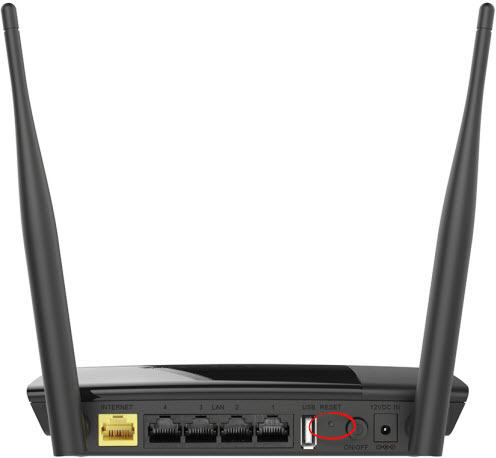
Reset buttons are usually tiny. Yours may look slightly different than this. Sometimes the button is under a pinhole, and you need a paper clip to push it.
Hold the reset button down for about 10 seconds while watching the lights on the front of your router. Notice how the lights on the front of the router are blinking. When the lights do something different, the router is reset. You cannot hold the button too long, and it will not hurt the router to hold the reset button down for longer than 10 seconds.
Remember, this will erase everything you have previously done to this Observa Telecom C4R400 router.
Be sure to only reset your router if you have tried everything else, such as running our Router Password Finder software, which can find your lost or forgotten router password for you.
Login to the Observa Telecom C4R400
Now you need to log in using the factory default username and password. We have a C4R400 Login Guide with all this information ready for you.
Change Your Password
Do not forget to change your router's default password when you log back into it. The factory default passwords for routers are very well known. You can follow our Choosing a Strong Password guide to help you pick a solid password for your router.
Tip: Write your new password down on a post-it note and stick it to the bottom of your router.
Other Observa Telecom C4R400 Guides
We have collected a lot of information about the Observa Telecom C4R400 router. You can find some of our additional content here.
This is the reset router guide for the Observa Telecom C4R400 B03P14_05 Dynami Wireless. We also have the following guides for the same router: