


This article covers how to reset the Observa Telecom C4R400 router back to factory default settings. This is not the same thing as rebooting a router. Rebooting a router is simply turning it off and back on again. This is different from a reset because a reset completely erases all settings from the router.
Warning: Before you continue, there are a few things you need to know. The following settings in your router will be changed:
- The router's login credentials are reset to factory defaults.
- Your WiFi login, password, and network name are reset.
- Your ISP username and password will be reset, and you may have to contact your ISP.
- All port forwards, firewall settings, and parental controls that you have configured will be removed.
A router reset should be considered the last resort when you cannot log in to your router any other way. Before you reset your router you may want to try recovering your router password with our Router Password Finder.
Other Observa Telecom C4R400 Guides
This is the reset router guide for the Observa Telecom C4R400 v1.0.0B09P25_06-NREF GotW3. We also have the following guides for the same router:
Recover Password in Observa Telecom C4R400
If the only reason that you are resetting your router is because you forgot your router password, then you may want to try running our Router Password Finder instead of resetting your router.
Our Router Password Finder can recover your lost or forgotten router password without doing a full router reset, which can save you lots of time.
Router Password Finder - Lost or Forgotten Router Password Recovery Tool
Only after you have tried to recover your missing router username and password should you perform a full router reset.
Reset the Observa Telecom C4R400
On most routers you can find a small button on the back or the bottom labeled reset. Look at your router and try to find something that looks like this:
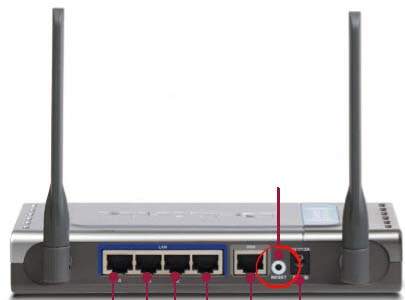
Even though yours may look slightly different, you need to look for a tiny button. You may need a paper clip to push the reset button.
Hold the reset button down for about 10 seconds while watching the lights on the front of your router. After a few seconds the lights should blink differently. When this happens, the reset is complete. You cannot hold the button too long, and it will not hurt the router to hold the reset button down for longer than 10 seconds.
Just don't forget that this will totally reset your Observa Telecom C4R400 router.
Be sure to only reset your router if you have tried everything else, such as running our Router Password Finder software, which can find your lost or forgotten router password for you.
Login to the Observa Telecom C4R400
After you are finished resetting your router, you need to login in using the original factory username and password. We have a C4R400 Login Guide with all this information ready for you.
Change Your Password
After logging in, you should really change your router's password for added security. It is a huge security risk to leave your router's password set to the factory default. Our Choosing a Strong Password guide can help you pick a strong password for your router.
Tip: A great place to write your new password down is on a piece of paper taped to the bottom of your router.
Other Observa Telecom C4R400 Guides
Here are some of our other Observa Telecom C4R400 guides that you might be interested in.
This is the reset router guide for the Observa Telecom C4R400 v1.0.0B09P25_06-NREF GotW3. We also have the following guides for the same router: