


This page shows how to change the LAN IP Address on the Telewell TW-EA510v3-b router.
Other Telewell TW-EA510v3-b Guides
This is the ip address guide for the Telewell TW-EA510v3-b. We also have the following guides for the same router:
- Telewell TW-EA510v3-b - Telewell TW-EA510v3-b User Manual
- Telewell TW-EA510v3-b - Telewell TW-EA510v3-b Login Instructions
- Telewell TW-EA510v3-b - How to change the DNS settings on a Telewell TW-EA510v3-b router
- Telewell TW-EA510v3-b - Setup WiFi on the Telewell TW-EA510v3-b
- Telewell TW-EA510v3-b - Information About the Telewell TW-EA510v3-b Router
- Telewell TW-EA510v3-b - Telewell TW-EA510v3-b Screenshots
- Telewell TW-EA510v3-b - Reset the Telewell TW-EA510v3-b
What is the LAN IP Address of a Router
The LAN IP Address of a router is also known as its internal IP address. It is also the IP address that you connect to when you want to configure your router. It is only useful from inside your network and has no use from the Internet side.
Routers have 2 IP addresses: an internal ip address and an external ip address. The external IP address is assigned to you by your Internet Service Provider, or ISP, and is generally not something that you can change. The internal IP address is set to a default value at the factory but can be changed if you want.
Common internal IP addresses for routers are:
- 192.168.0.1
- 192.168.1.1
- 10.0.0.1
It is generally a good idea to make the last number of your router's internal IP address a '1', as in 192.168.0.1 or 10.0.0.1. This is not necessary, but many people do it and it makes it a bit easier to remember which IP address is assigned to your router. If you want to change the internal IP address of your router, this guide shows you how.
Login To The Telewell TW-EA510v3-b
To get started configuring the Telewell TW-EA510v3-b LAN page you need to login to your router. If you are already logged in you can skip this step.
To login to the Telewell TW-EA510v3-b, follow our Telewell TW-EA510v3-b Login Guide.
Change the LAN IP Address on a Telewell TW-EA510v3-b
If you followed our login guide above then you should see this screen.
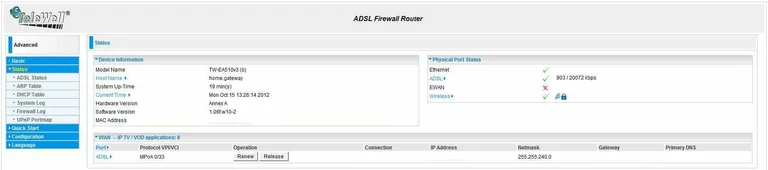
Once you decide to change your Router IP Address, the address you are looking at while inside your network, you first have to log into the Telewell TW-EA510v3-b. This takes you to the Status page of this Router. Next, click the choice on the left, in the blue box labeled Configuration, then LAN, and lastly Ethernet.
Configure the LAN section of your Telewell TW-EA510v3-b
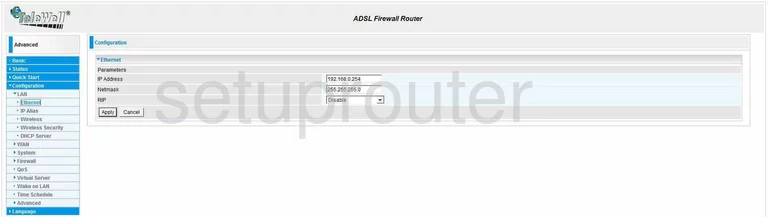
Now you are on the correct page. Type in your new address you have chosen for your Router in the box labeled IP Address. We highly recommend that you use an address such as 192.168.0.1
Make sure that you leave the Subnet Mask at 255.255.255.0
Last of all, don't forget to click the Apply button.
Possible Problems when Changing your LAN IP Address
When you change your LAN IP Address you are making a fundamental change to how your network functions and all computers on your network will be affected. You will lose your Internet connection when you apply these changes. Your router may reboot and require a couple of minutes to start responding again.
Also note that some computers may need to be rebooted after you make this change before they can talk to the router or on the Internet again.
Other Telewell TW-EA510v3-b Info
Don't forget about our other Telewell TW-EA510v3-b info that you might be interested in.
This is the ip address guide for the Telewell TW-EA510v3-b. We also have the following guides for the same router:
- Telewell TW-EA510v3-b - Telewell TW-EA510v3-b User Manual
- Telewell TW-EA510v3-b - Telewell TW-EA510v3-b Login Instructions
- Telewell TW-EA510v3-b - How to change the DNS settings on a Telewell TW-EA510v3-b router
- Telewell TW-EA510v3-b - Setup WiFi on the Telewell TW-EA510v3-b
- Telewell TW-EA510v3-b - Information About the Telewell TW-EA510v3-b Router
- Telewell TW-EA510v3-b - Telewell TW-EA510v3-b Screenshots
- Telewell TW-EA510v3-b - Reset the Telewell TW-EA510v3-b