

The Zoom 5352 router is considered a wireless router because it offers WiFi connectivity. WiFi, or simply wireless, allows you to connect various devices to your router, such as wireless printers, smart televisions, and WiFi enabled smartphones.
Other Zoom 5352 Guides
This is the wifi guide for the Zoom 5352. We also have the following guides for the same router:
WiFi Terms
Before we get started there is a little bit of background info that you should be familiar with.
Wireless Name
Your wireless network needs to have a name to uniquely identify it from other wireless networks. If you are not sure what this means we have a guide explaining what a wireless name is that you can read for more information.
Wireless Password
An important part of securing your wireless network is choosing a strong password.
Wireless Channel
Picking a WiFi channel is not always a simple task. Be sure to read about WiFi channels before making the choice.
Encryption
You should almost definitely pick WPA2 for your networks encryption. If you are unsure, be sure to read our WEP vs WPA guide first.
Login To The Zoom 5352
To get started configuring the Zoom 5352 WiFi settings you need to login to your router. If you are already logged in you can skip this step.
To login to the Zoom 5352, follow our Zoom 5352 Login Guide.
Find the WiFi Settings on the Zoom 5352
If you followed our login guide above then you should see this screen.
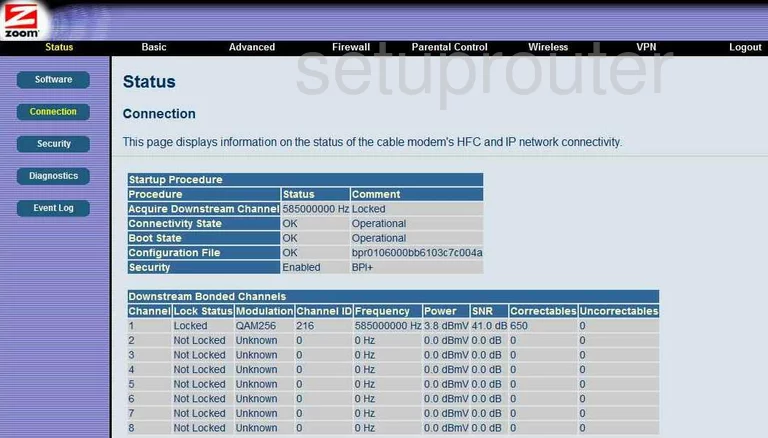
We begin this wireless setup guide on the Status page of the Zoom 5352 router. Start out by clicking Wireless located at the top of the page. Then in the left sidebar click Radio.
Change the WiFi Settings on the Zoom 5352
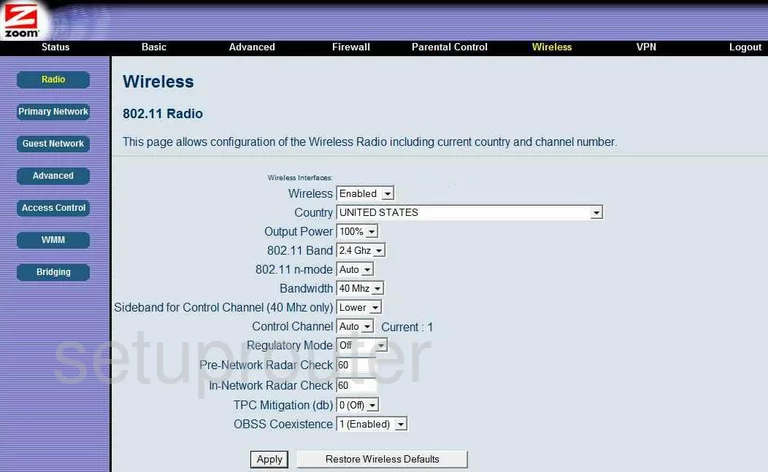
This brings you to a new page.
On this page, make sure the Control Channel is set to 1, 6, or 11. To learn more, check out our WiFi Channels Guide.
Make sure to click Apply before leaving this page.
Now click Primary Network in the left hand sidebar.
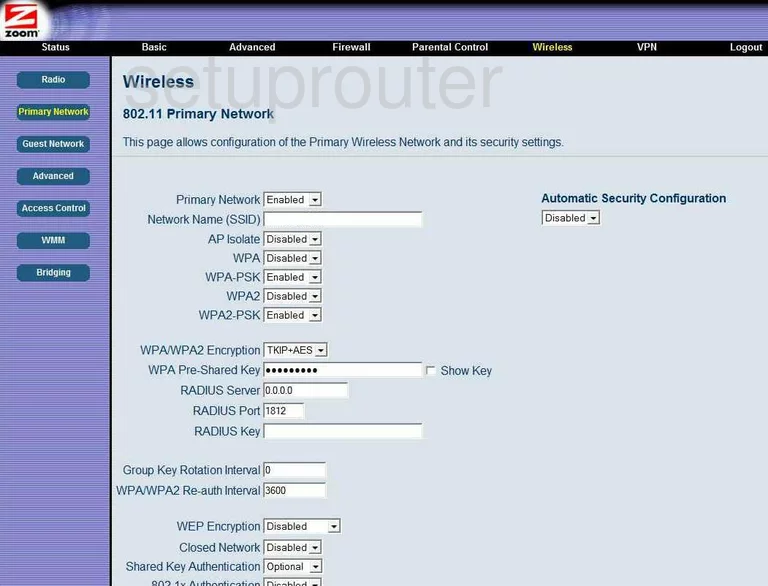
First, you need to set an SSID. This will be your network identification, and can be anything you like. Enter your desired network name into the box marked Network Name (SSID). For more information regarding network identification, see our Wireless Names Guide.
Next, be sure that the WPA2-PSK option is set to Enable. To learn why this is important, take a look at our WEP vs. WPA Guide.
Now set the WPA/WPA2 Encryption is set to AES.
And finally, set a password. Enter your desired network password into the box labeled WPA Pre-Shared Key. For tips on creating a strong password, check out our Choosing a Strong Password Guide.
And that's all there is to it. Just be sure to click Apply when you're happy with these settings.
Possible Problems when Changing your WiFi Settings
After making these changes to your router you will almost definitely have to reconnect any previously connected devices. This is usually done at the device itself and not at your computer.
Other Zoom 5352 Info
Don't forget about our other Zoom 5352 info that you might be interested in.
This is the wifi guide for the Zoom 5352. We also have the following guides for the same router: