


When setting up your wireless network it is important to think about network security. A secure network allows you to be in control of who is on your network and which devices they have access to.
A wired network is secure because access is limited to only the devices that are physically plugged-in to it. For example if you want to use a friend's wired internet connection you may need to connect a cable from your laptop (or other device) to their router. With a wireless network no physical connection is required. Anyone within range of your wireless network may try to connect. Since you don't want to allow random strangers to have access to your wireless network, properly setting up network security is very important. A lot of people make the assumption that since they have a router they have a great security system already in place, this is true in part. What they have is potential for a great security system. There are many ways to secure a wireless network. This guide covers three of the most common security settings plus wireless channels:
- Wireless Name (SSID)
- Security Encryption
- Wireless Password
- Wireless Channel - While not a security measure this is a convenient time to make changes if needed.
Wireless Name (SSID)
SSID is short for Service Set IDentifier. This is the network name you need to create in order to identify your network. Most routers come with a factory default SSID but this should be changed as soon as possible. Leaving this with the factory default SSID is a sign to potential hackers that the rest of your defaults are most likely in place. A router with the factory defaults in place is like an open door to an intruder. Changing your SSID makes you much less of a target. For a full explanation on this topic, take a look at our guide titled How to Change your Wireless Name.
Security Encryption
The best way to secure your WiFi network is to change the encryption your network uses to transmit data. There are three common choices, WEP, WPA, and WPA2. You should almost definitely choose WPA2 for your security encryption. The security of your personal information should is of highest priority. Be sure to read our WEP vs. WPA Guide for more information.
Wireless Password
Even if you pick the best security encryption available, your security is no better than your password. Your wireless password is like the key to your house. Most of us lock our doors and windows to prevent theft. Have you left your wireless network vulnerable to attack? Given enough time any password can be cracked. It is your job to make it as hard as possible so the potential attacker gives up and moves on. Don't give in and create an easy to crack password. For great ideas in creating a strong password check out our guide titled How to Choose a Strong Password.
Wireless Channel
Changing your wireless channel does not increase your security. It is covered in this guide because the channel is normally located on the wireless security page. This makes a convenient opportunity to check it and make the necessary changes if needed.
Routers communicate over wireless channels similar to television channels. Each channel is given a number which corresponds to a radio frequency. There is room in the spectrum for three that don't overlap. A non-overlapping channel receives and sends less interference than a partially overlapping channel. These three channels that don't partially overlap are 1,6, and 11. We recommend that you use one of these three channels. Picking a wireless channel is not always a simple task. For a more detailed guide on the topic read our guide titled What are WiFi Channels.
Setup WiFi
This is a basic guide to show you how to setup a more secure WiFi for your network.
Login to The Router
To start configuring the WiFi settings you need to login to your router. You can find your router's login guide from the Home page of our site.
Find the WiFi Settings on Your Router
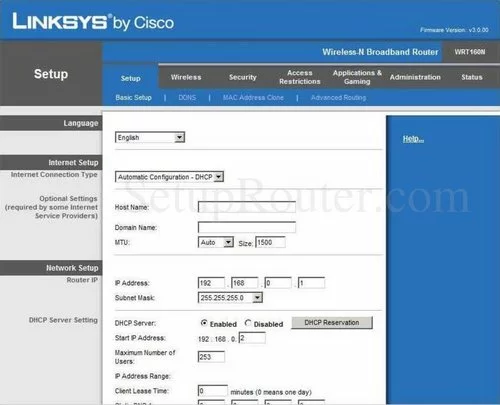
If you followed our login guide you should now be on the home page of your router. From here you need to locate the Wireless settings. On this router you click the option of Wireless at the top of the page in blue. Then under that click the option of Basic Wireless Settings.
Change The WiFi Settings

You should now be on the Wireless Settings page of your router. The first setting we recommend changing for this router is titled Configuration View. Make sure you are on Manual. The other option here is Wi-Fi Protected Setup. Do not use WPS. WPS is an extremely easy way in for a hacker. Check out our guide on the topic titled What is WPS.
Next, find the Network Name (SSID). Go ahead and create a unique name here but we recommend avoiding personal information.
The Channel is located on this page as well. Check to see what channel you are using and change it if you are not on channels 1,6, or 11.
Don't forget to save your changes by clicking the appropriate button. On this router it is located on the bottom and labeled Save Settings.
Some routers will have more than one page you need to visit in order to secure your network. This particular example has a separate page for the encryption and password. To get to the next page simply find the option that reads Wireless Security, or something similar.
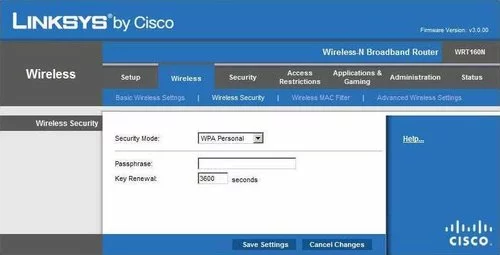
Once you are on the correct page, find the list of encryption choices. For this router it is titled Security Mode. Open up this drop down list to choose the option of WPA2 Personal. Some routers will call it WPA2-PSK. These are the same and refer to personal networks using a Pre-Shared Key or password.
The last setting that you need to change is titled Passphrase. This is the PSK or Pre-Shared Key as it is called on some routers. It is important to create a strong password here that will deter attacks on your network. We strongly recommend using a minimum of 14-20 characters with at least one symbol, number, and capital letter.
Once you have made all the appropriate changes, go ahead and save your changes by clicking the Save Settings button.
Possible Problems When Changing Your WiFi Settings
After you make these changes to your router you need to reconnect any previously connected devices. This is done at the device itself not in the router.