


A factory reset puts your Actiontec gateway back to the defaults on its label.
Check With Your ISP First
Your ISP set up the gateway. A reset can erase your Internet login (PPPoE username and password), which you may need to get from the ISP. Write down your WiFi details and port forwards too. A restart (power off for 30 seconds) doesn't erase anything.
Method 1: The Reset Button
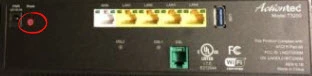
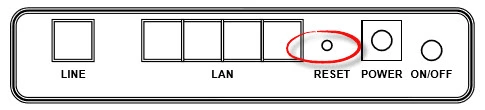
- With the gateway on, press and hold the Reset button (often red, or a pinhole on the back) for about 10 to 15 seconds, until the power light changes color.
- Let go and wait up to 5 minutes for the gateway to restart.
Method 2: Reset From the Web Interface
Log in, then look for:
- CenturyLink and Frontier: Utilities > Restore Defaults.
- Telus and Bell: Advanced Setup > Utilities > Restore Defaults (or Advanced > Reset).
- Verizon MI424WR: Advanced > Restore Factory Defaults.
After the Reset
Log in with the label password (see the Actiontec login guide). Re-enter your Internet login if the gateway doesn't connect on its own, and set up your WiFi.