


A factory reset puts your ASUS router back to its default settings. It also clears the admin login you created, so it's the way back in if you've forgotten it.
Before You Reset
A reset deletes your WiFi settings, admin login, port forwards, AiMesh setup and Internet settings. If you can still log in, save a backup first: go to Administration > Restore/Save/Upload Setting and click Save setting. A restart doesn't erase anything.
Method 1: The Reset Button
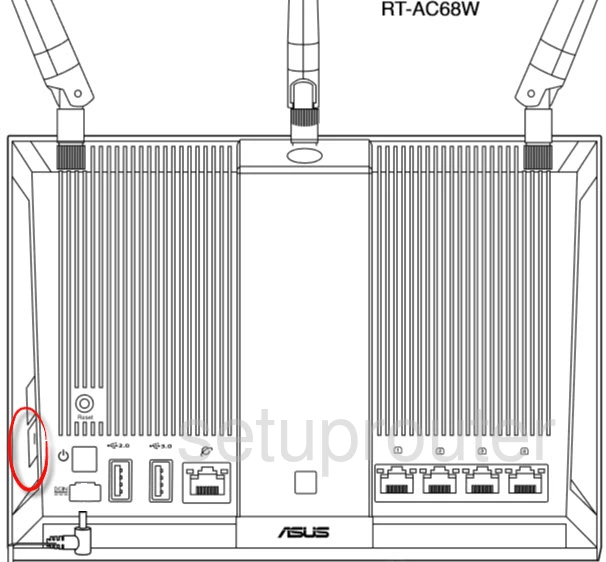
- With the router on, press and hold the RESET button on the back for about 5 to 10 seconds, until the power LED starts to blink.
- Let go. The router restarts with its default settings after a couple of minutes.
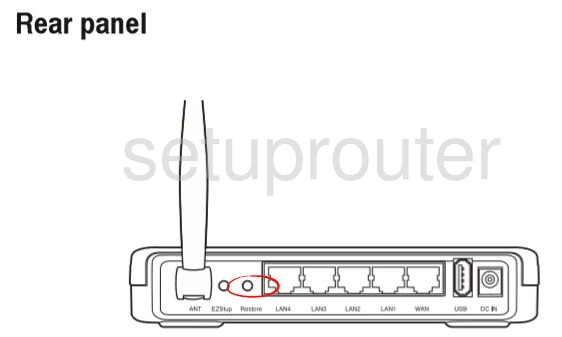
On ZenWiFi and other mesh systems, reset the main router to start over. Reset the nodes separately if you want to remove them too.
Method 2: Reset From the Web Interface
- Go to Advanced Settings > Administration > Restore/Save/Upload Setting.
- Click Restore next to Factory default. You can also tick Initialize all the settings, and clear all the data log.
- Confirm and wait for the router to restart.
In the ASUS Router app, go to Settings > System Settings > Factory default.
After the Reset
- Connect to the router's default WiFi (it's named ASUS or ASUS_xx) or plug in a cable.
- Go to http://router.asus.com. The Quick Internet Setup starts and asks you to create a new admin login. See the ASUS login guide.
- Set up your Internet connection and WiFi. If you saved a backup, load it with Upload on the Restore/Save/Upload Setting page.