

The Asus WMVN25E2+ router is considered a wireless router because it offers WiFi connectivity. WiFi, or simply wireless, allows you to connect various devices to your router, such as wireless printers, smart televisions, and WiFi enabled smartphones.
Other Asus WMVN25E2+ Guides
This is the wifi guide for the Asus WMVN25E2+. We also have the following guides for the same router:
- Asus WMVN25E2+ - Asus WMVN25E2+ Login Instructions
- Asus WMVN25E2+ - How to change the IP Address on a Asus WMVN25E2+ router
- Asus WMVN25E2+ - Asus WMVN25E2+ User Manual
- Asus WMVN25E2+ - How to Reset the Asus WMVN25E2+
- Asus WMVN25E2+ - Asus WMVN25E2+ Screenshots
- Asus WMVN25E2+ - Information About the Asus WMVN25E2+ Router
WiFi Terms
Before we get started there is a little bit of background info that you should be familiar with.
Wireless Name
Your wireless network needs to have a name to uniquely identify it from other wireless networks. If you are not sure what this means we have a guide explaining what a wireless name is that you can read for more information.
Wireless Password
An important part of securing your wireless network is choosing a strong password.
Wireless Channel
Picking a WiFi channel is not always a simple task. Be sure to read about WiFi channels before making the choice.
Encryption
You should almost definitely pick WPA2 for your networks encryption. If you are unsure, be sure to read our WEP vs WPA guide first.
Login To The Asus WMVN25E2+
To get started configuring the Asus WMVN25E2+ WiFi settings you need to login to your router. If you are already logged in you can skip this step.
To login to the Asus WMVN25E2+, follow our Asus WMVN25E2+ Login Guide.
Find the WiFi Settings on the Asus WMVN25E2+
If you followed our login guide above then you should see this screen.
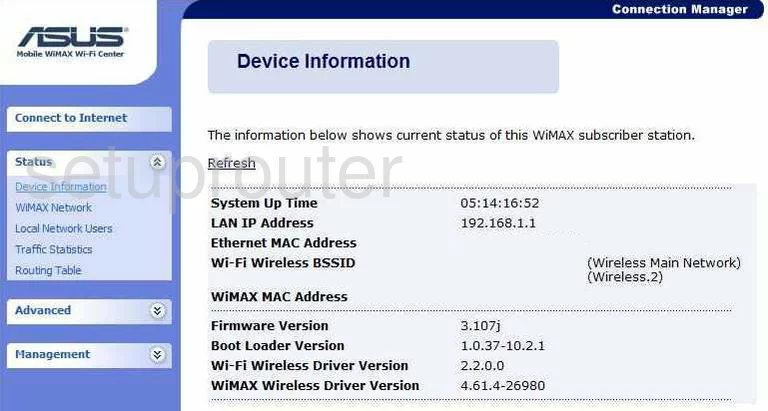
This guide begins on the Device Information page of the Asus WMVN25E2+ router. To change the WiFi settings click the option in the left sidebar labeled Advanced. Then under that choose Wi-Fi Wireless.
Change the WiFi Settings on the Asus WMVN25E2+
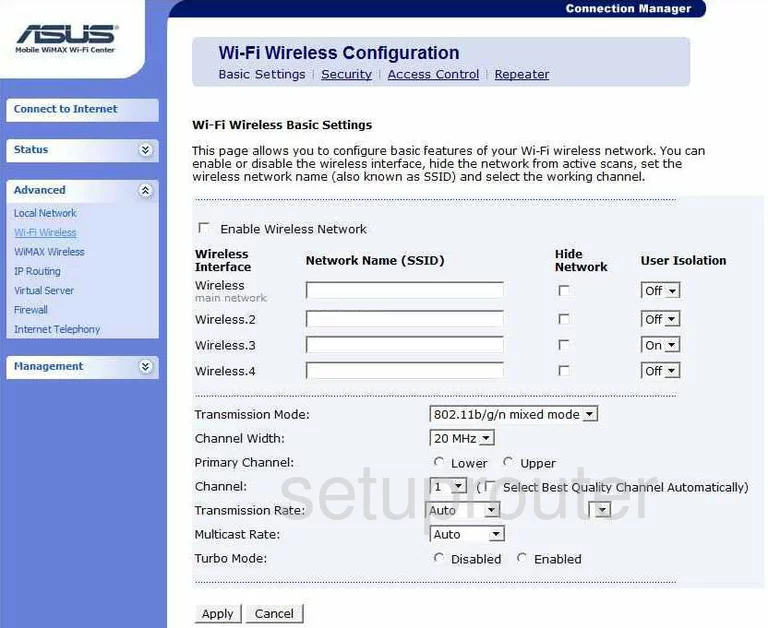
This should take you to the Wi-Fi Wireless Basic Settings page like the one you see above. If it didn't, click the choice at the top titled Basic Settings in the blue Wi-Fi Wireless Configuration box.
This page allows you to change several wireless settings. First place your cursor in the first box under the headinf of Network Name (SSID). In this box write the name that you want visible to others. This name is how you identify your network. It's not important what you enter here but we recommend avoiding personal information. Learn more in our wireless names guide.
Below that in the next section you can change the Channel if you want. Stay on channels 1, 6, or 11. Find out why in this WiFi Channels guide.
When you are finished with this click the Apply box at the bottom of the page.
Next you need to check and probably change the security of your network. Click the option at the top of the page labeled Security.
This takes you to a page that unfortunately we don't have. If you have this router you could help us out. Go to this link to learn more.
Our best guess is that on the next page you are asked what type of security you want to use. Asus routers tend to call it the Authentication Method. The most secure method is WPA2-PSK also called WPA2-Personal. Find out more about this security and your other choices in this WEP vs. WPA guide. If this router doesn't have this choice then we highly recommend updating your firmware.
Next a lot of Asus routers ask for a WPA Encryption. In this box choose AES.
The last setting that needs to be changed is probably going to be called the WPA Pre-Shared Key or Passphrase. This is the Internet password you use to allow access to your wireless network. This password needs to be strong. Create a strong complex password by following some simple rules outlined in the Choosing a Strong Password guide.
When you are finished with this you need to click the Apply button to save your changes.
Possible Problems when Changing your WiFi Settings
After making these changes to your router you will almost definitely have to reconnect any previously connected devices. This is usually done at the device itself and not at your computer.
Other Asus WMVN25E2+ Info
Don't forget about our other Asus WMVN25E2+ info that you might be interested in.
This is the wifi guide for the Asus WMVN25E2+. We also have the following guides for the same router:
- Asus WMVN25E2+ - Asus WMVN25E2+ Login Instructions
- Asus WMVN25E2+ - How to change the IP Address on a Asus WMVN25E2+ router
- Asus WMVN25E2+ - Asus WMVN25E2+ User Manual
- Asus WMVN25E2+ - How to Reset the Asus WMVN25E2+
- Asus WMVN25E2+ - Asus WMVN25E2+ Screenshots
- Asus WMVN25E2+ - Information About the Asus WMVN25E2+ Router