


This page shows how to change the DNS settings on the Mobily WLTFQR-117GN router.
Other Mobily WLTFQR-117GN Guides
This is the dns guide for the Mobily WLTFQR-117GN. We also have the following guides for the same router:
- Mobily WLTFQR-117GN - Reset the Mobily WLTFQR-117GN
- Mobily WLTFQR-117GN - Setup WiFi on the Mobily WLTFQR-117GN
- Mobily WLTFQR-117GN - How to change the IP Address on a Mobily WLTFQR-117GN router
- Mobily WLTFQR-117GN - Mobily WLTFQR-117GN Login Instructions
- Mobily WLTFQR-117GN - Mobily WLTFQR-117GN Screenshots
- Mobily WLTFQR-117GN - Information About the Mobily WLTFQR-117GN Router
What is the DNS setting on a Router
When you connect a router to the Internet it gets a few settings from your ISP automatically. One of the settings that the ISP sets in your router is the DNS setting. DNS stands for Domain Name System and it is used to convert Internet names into actual IP addresses. For instance, when you go to "google.com", your are really connecting to an IP address that is mapped through DNS to a number such as:
- 173.194.33.73
This mapping happens automatically every time you visit any page on the Internet.
Why Change Your Router's DNS Setting
Some ISPs choose to abuse the DNS system and map unknown names to servers that they control. This can be done in a way that you don't know it is happening since your router is getting its DNS settings from your ISP. For instance, if you have one of these ISPs who is hijacking your DNS, and you try to surf the web to "some-random-site.com" and "some-random-site.com" does not exist, you might get a page back from your ISP with local advertisements on it.
By changing your DNS setting in your router you will effectively change the DNS setting for every computer on your network. This is because when a device is connected to your network your router automatically hands out its own DNS settings to that device. This way you can protect your entire network from ISP hijacking with just one setting.
What Should I Change My DNS To
There are 2 really great DNS servers on the Internet that you can choose from right now: Google Public DNS and OpenDNS. If you are not sure which one to pick then just use Google Public DNS.
When you change the DNS settings in your router, you usually have to enter a Primary and a Secondary setting. The secondary is only used if the primary can not be located. Here are common settings:
If you want to use Google Public DNS, use the following settings:
- Primary: 8.8.8.8
- Secondary: 8.8.4.4
If you want to use OpenDNS, use the following settings:
- 208.67.222.222
- 208.67.220.220
Login To The Mobily WLTFQR-117GN
To get started configuring the Mobily WLTFQR-117GN DNS page you need to login to your router. If you are already logged in you can skip this step.
To login to the Mobily WLTFQR-117GN, follow our Mobily WLTFQR-117GN Login Guide.
Change the DNS settings on a Mobily WLTFQR-117GN
If you followed our login guide above then you should see this screen.
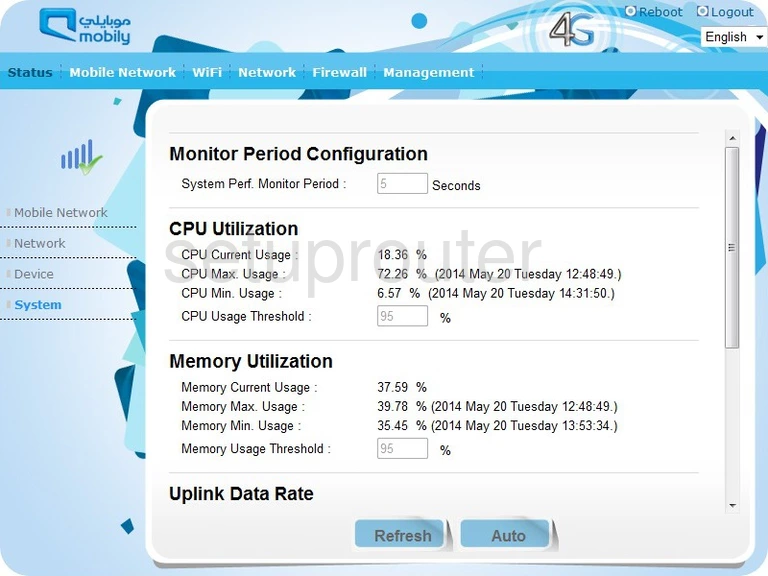
Once you have logged into the Mobily WLTFQR-117GN you are placed on the Status screen. From here click the link at the top of the page labeled Network.
This opens up a new list of options in the left sidebar. Click the option of DHCP Server.
Configure the DNS section of your Mobily WLTFQR-117GN
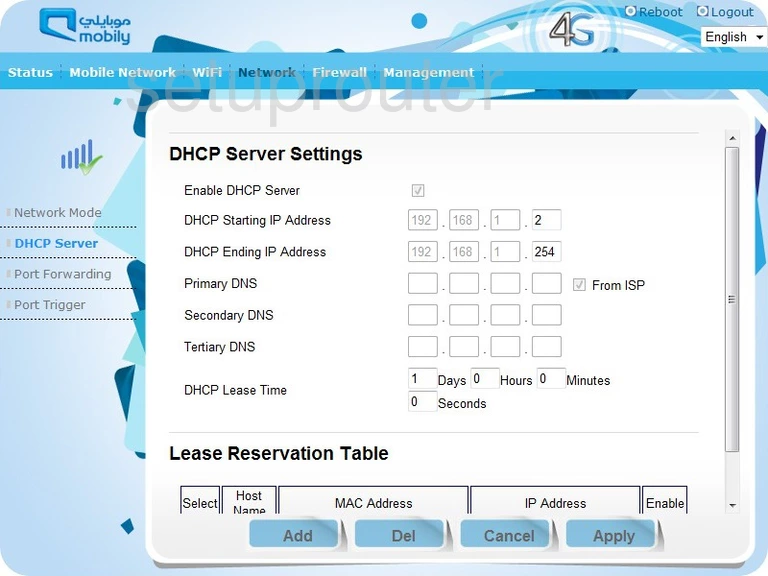
You are now on the correct page to make the necessary changes to your DNS server.
Locate Primary DNS. On the far right is a box labeled From ISP. This box needs to be unchecked. Then in the four boxes enter the main DNS server you want to use.
Below that is the Secondary DNS. Enter the alternate DNS server address here. Remember that this address is only used when the first can't be found.
Next is the Tertiary DNS. This DNS server would only be used if both the primary and secondary addresses are busy. This is not likely to happen. You can leave this set of boxes alone or enter a third address here.
That's it, just click the Apply button near the bottom of the page before you exit.
Possible Problems when Changing your DNS settings
Most devices on your network will not begin using the new DNS settings until they have been rebooted. After rebooting a device you can go to it's network settings and verify that it is using the DNS servers that you specified.
Other Mobily WLTFQR-117GN Info
Don't forget about our other Mobily WLTFQR-117GN info that you might be interested in.
This is the dns guide for the Mobily WLTFQR-117GN. We also have the following guides for the same router:
- Mobily WLTFQR-117GN - Reset the Mobily WLTFQR-117GN
- Mobily WLTFQR-117GN - Setup WiFi on the Mobily WLTFQR-117GN
- Mobily WLTFQR-117GN - How to change the IP Address on a Mobily WLTFQR-117GN router
- Mobily WLTFQR-117GN - Mobily WLTFQR-117GN Login Instructions
- Mobily WLTFQR-117GN - Mobily WLTFQR-117GN Screenshots
- Mobily WLTFQR-117GN - Information About the Mobily WLTFQR-117GN Router